Distributed competition without a video wall
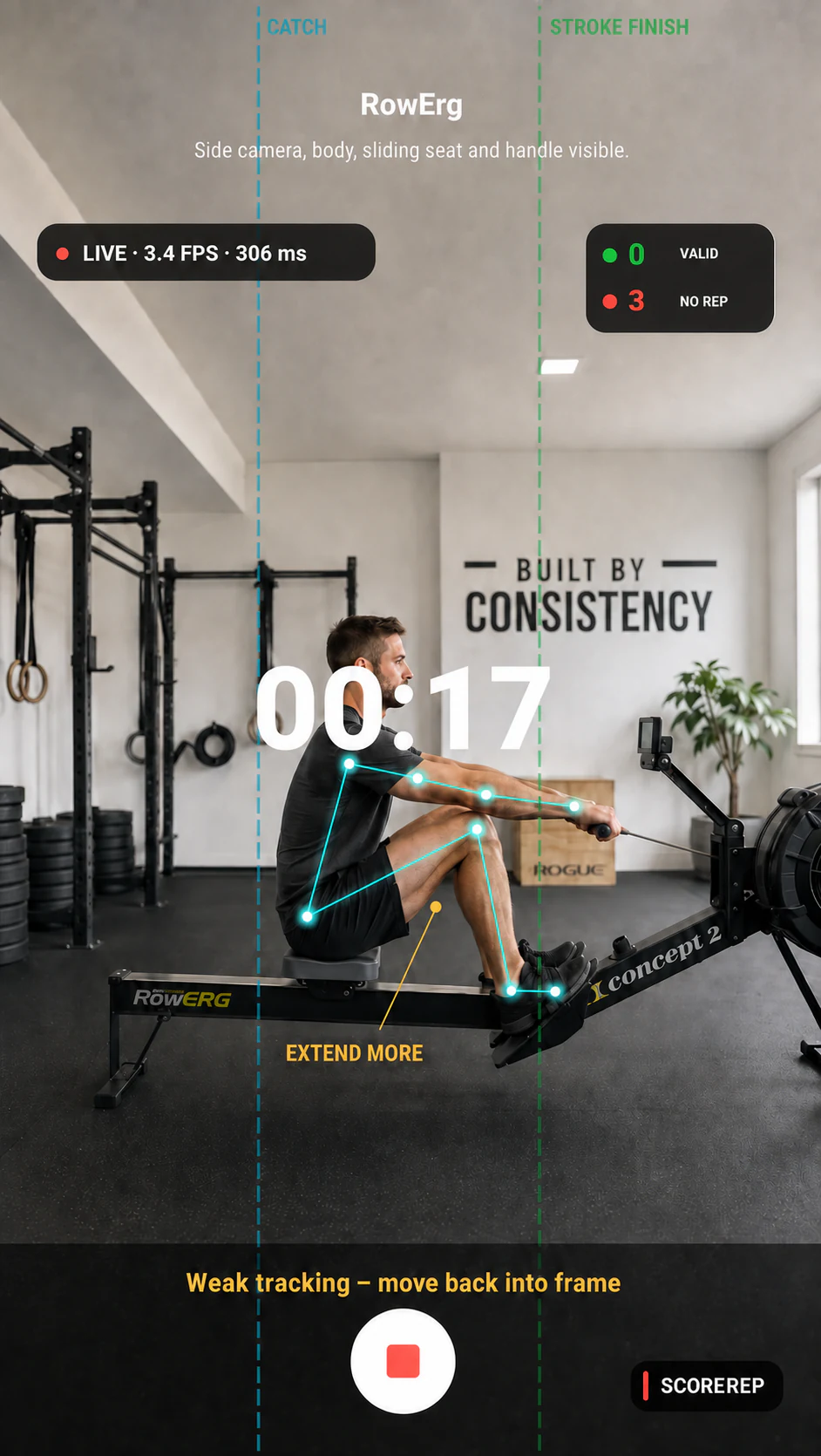
Each athlete uses their own device for pose tracking. That preserves computing power for the person in front of that camera and avoids asking one phone to detect a crowded group.
The battle room receives compact movement state: skeleton landmarks, rep count, pace and readiness. Other participants and spectators see the competition rather than the private camera feed.
- Room code for joining
- Portrait or landscape choice
- Ready gesture after full-body detection
- Shared countdown and live state
- Explicit finish state
Designed for remote athletes
Participants do not need to be in the same gym. The ScoreRep server coordinates room membership, start state and live movement updates between devices.
Network interruptions and tracking confidence remain visible product concerns. A trustworthy result must distinguish confirmed reps from uncertain movement instead of silently inventing activity.
Useful for gyms and training groups
Battle mode can turn a remote challenge, gym event or training session into a shared performance view. The value is not simply a leaderboard: it is seeing how the race developed rep by rep.